
Restoring Admin Access with No Logout Option
Reset Your Admin Login Credentials After Logging In As a Customer
Getting Admin Access Back If You Can't Log Out as a Customer
Sometimes Pillars admins log in to Pillars using a distributor’s login name and password to verify the distributor experience instead of using their administrator credentials.
If distributors normally access Pillars through Single Sign-On (SSO) from the ecommerce site, the dropdown menu with the Logout option may not display. That is expected because field users typically sign out through the ecommerce site, which logs them out of both systems simultaneously.
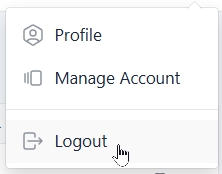
If you logged directly into Pillars as a customer and the dropdown menu with the Logout option is not available in the top-right corner next to your username (see image), so you can't manually log out as the distributor and log back in as an admin, you can clear the saved login credentials using your browser’s Developer Tools.
Steps
While logged in to Pillars with the distributor's credentials in Chrome or Microsoft Edge,
- Press F12 to open your browser's Developer Tools.
- Select the Application tab in the top menu.
- In the left sidebar, expand Local Storage.
- Select the Pillars site/domain listed under Local Storage.
- In the list of keys on the right, find the key named
token, usually the last item in the list. - Delete that row.
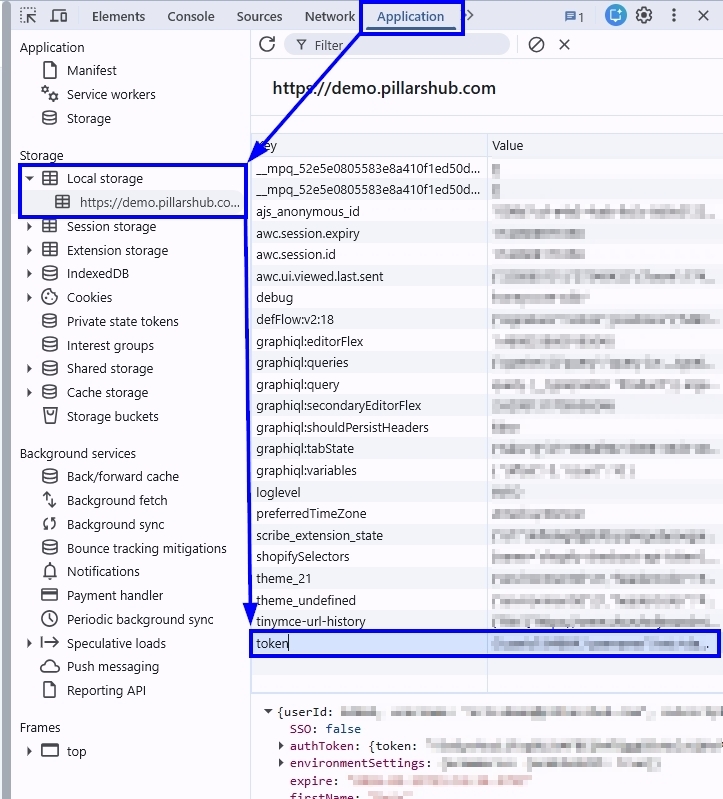
Alternatively, you can clear all Local Storage for that site by right-clicking the site URL under Local Storage and selecting Clear.
Then Refresh the page and you should be able to log in using your administrator credentials.
Updated 6 months ago