
Paymenture - TygaPay
Simply Complete the Fields on the Form and Click Connect.
Connecting Pillars to the Paymenture / TygaPay payment platform only requires completing the following five fields as shown in Figure 5:
- Service URL
- Paymenture User
- Paymenture Token
- Paymenture Client ID
- Paymenture Company ID.
Steps:
- Click the login dropdown at the top right of the admin Back Office and select Manage Account. (See Image 1.) This takes you to the Pillars Portal.
- Click the Configure button at the far right on the row of the environment you want to configure. (See Image 2.)
- Click the gear icon at the top right of the Commission Payment Integration box. (See Image 3.)
- Select Paymenture from the Payment Service dropdown menu (See Image 4.)
- Complete all the fields on the dialog seen in Image 5.
- Click Connect at the bottom of the dialog to finalize the communication between Pillars and Paymenture/TygaPay.
After completing these steps, you can click the Payables tab in the admin Pillars Back Office and pay out any existing payable commissions through Paymenture/TygaPay.
Note: For payment to be successful, each person being paid must have already configured their Paymenture/TygaPay account in that system.
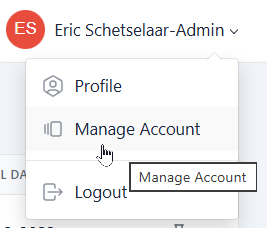
Figure 1
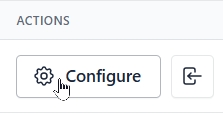
Figure 2
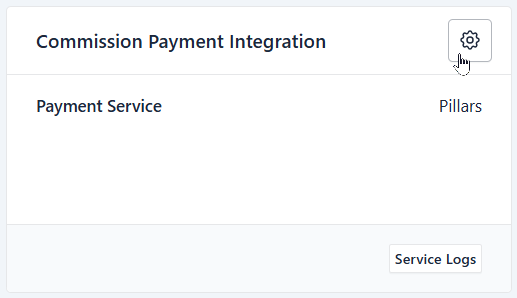
Figure 3
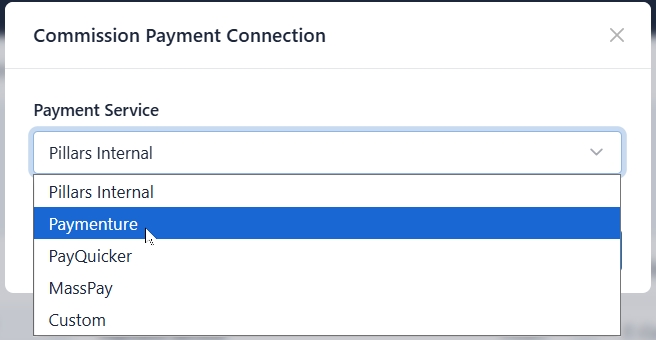
Figure 4
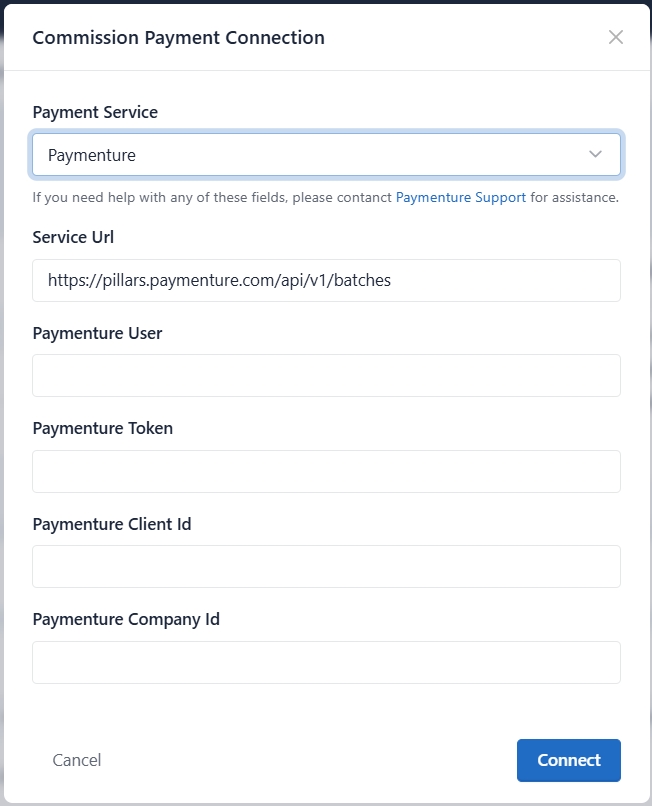
Figure 5
Updated 6 months ago
Did this page help you?