
Password Reset Emails: Resolving 404 Errors
Setting Up Email Delivery Settings for Password Reset Emails, e.g., SendGrid
Questions:
- Why do I get a 404 error when trying to reset my password?
- What does the 404 error mean when I try to reset my password?
- How do I resolve the 404 error when trying to reset my password?
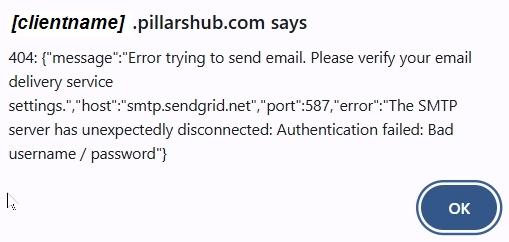
If the Email Delivery Service settings are not configured properly, Pillars will return a version of this 404 error.
Main Points:
- SendGrid, or another email delivery service, must be configured to send password reset emails for Pillars.
- Specify the Username (
apikey) and Password for SendGrid or your preferred email delivery service on the Pillars > Settings > Email Delivery Service settings screen. (See the screenshot below.) - The From Email address specified in Pillars > Settings > Email Delivery Service must be a valid email address that is already configured in your email delivery service provider. The password reset email will only work if that email address is already set up.
Explanation:
For Pillars to send a password reset email to any user, you must have the Email Delivery Service settings configured properly. SendGrid is used by default and is a cloud-based customer communication platform that acts as an intermediary, managing the technical complexities of sending emails. It offers a reliable SMTP service and API to ensure high deliverability, bypassing spam filters and scaling, trusted by developers and marketers to send billions of emails monthly.
For security reasons, SendGrid API keys cannot be viewed or retrieved after they are created. If you have lost your API key, you must create a new one and update your application with the new value.
You may use another email delivery service instead of SendGrid if you prefer. Simply change the Host to the appropriate URL on the Email Delivery Service Settings screen.
Steps to Create a New SendGrid API Key
NOTE: If you are using an email delivery service other than SendGrid, use the equivalent steps to generate the API Key in that email delivery service vendor software.
-
Log in to your SendGrid account dashboard.
-
Navigate to Settings:
- Locate the sidebar on the left.
- Click on Settings.
- Select API Keys.
-
Create Key: Click the Create API Key button in the top-right corner.
-
Set Permissions:
-
Give your key a descriptive name.
-
Choose a permission level: Full Access, Restricted Access, or Billing Access.
-
-
Save the Key: Click Create & View.
-
Your API key will appear on the screen. Copy it immediately and store it in a secure location, such as a password manager.
Important Considerations
- One-Time Visibility: Once you click "Done" or leave the page, the key is hidden forever for security.
- Key Limits: You can have a maximum of 100 API keys per account.
- Security Best Practices: According to the official Twilio SendGrid Documentation, you should store your API key in an environment variable rather than hardcoding it directly into your source code.
- Updating Old Keys: If you are replacing an old key, remember to delete the old one from the "API Keys" page to ensure it can no longer be used.
Steps to Set Up Email Delivery Service in Pillars
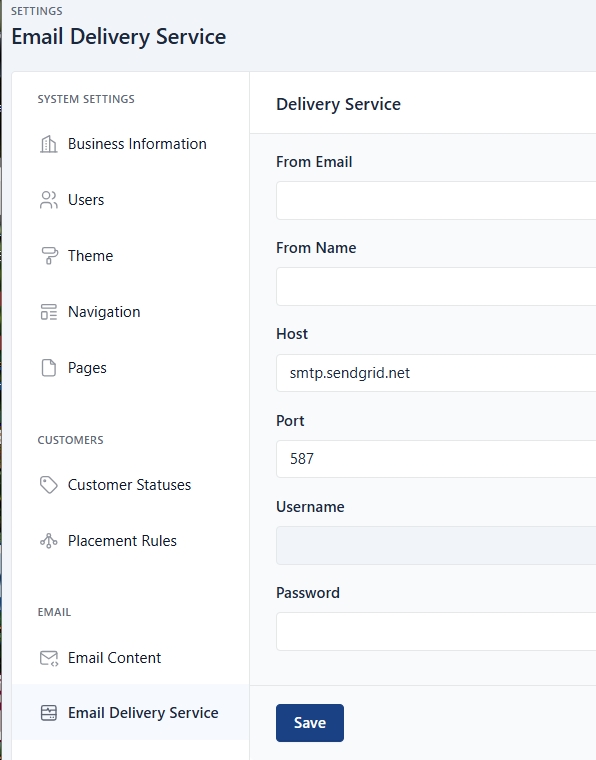
Accurately completing the fields on the Email Delivery Service Settings page enables users to easily reset their Pillars login passwords on their own.
- Navigate to the Settings > Email Delivery Service Settings page and enter the following in their respective text boxes:
- The From Email address you want the password reset email to come from, e.g.,
[email protected]. - The From Name for the sending email address, e.g.,
YourCompanyName Support. - The Host is
smtp.sendgrid.net. If you are using an email delivery service other than SendGrid, substitute the appropriate URL for that host. - The Port is
587. - The Username is
apikey(literally the string "apikey"). - The Password is the API Key generated in SendGrid or your other email delivery service.
- Click Save.
Updated 6 months ago